
Before you start
This guide takes you from exploring TranzERP to opening your company’s Web / Cloud workspace. If you are choosing Desktop or Mobile, ask our team for the installation and access instructions for that edition.
Have these details ready
- Your business activities and the workflows you want to manage.
- The platform you are considering and any questions about its features.
- If you already have access, the workspace address supplied by your company administrator.
Choose your platform
Start with the way your team works. Tranz offers Web / Cloud, Desktop and Mobile options, along with a Web + Mobile bundle. Web / Cloud has the broadest feature set; the other editions have their own scope.
Review the product pages and pricing, then confirm the modules, user and device limits, compatibility and any offline or synchronization requirements with our team.
Arrange access
Contact the Tranz team to discuss your needs, request a demo or trial, or ask about a subscription. Explain which platform you are interested in and what you want to do with it.
Before starting, confirm what is included, any demo or trial conditions, the total price and VAT treatment, renewal arrangements and the setup assistance available. Ask which company details and opening records are needed before sending business data.
Talk to our teamGet your workspace address
For Web / Cloud access, ask your company administrator for your exact workspace address and sign-in arrangements. Each customer has their own domain, so there is no single shared login address for every Tranz business.
erp.yourcompany.com is an example only. Use the
address supplied by your administrator.
Open your workspace
Use the Customer Login page on this website to check the address and continue to your company’s workspace.
- Open Customer Login.
- Enter your company’s workspace address in Company workspace address.
- Select Check address and review the destination shown.
- If it matches the address supplied by your administrator, select Continue to workspace.
- Sign in on your company’s workspace using the access details provided to you.
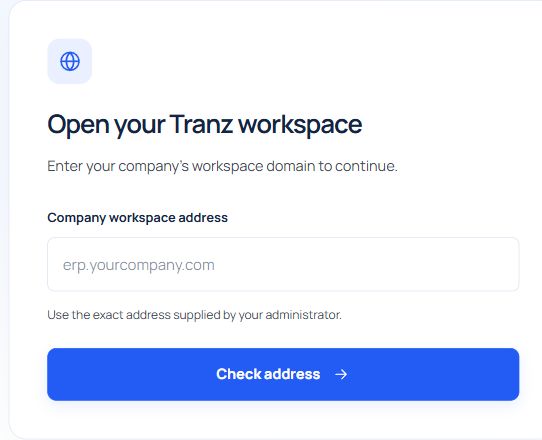
This public website does not collect your ERP login credentials. Sign in after continuing to your company’s workspace.
Find help when you need it
If you do not know your workspace address or sign-in details, ask your company administrator. If the workspace does not open, check the address and your internet connection, then contact the team if you still need help.
Describe what happened and any message you see. Keep passwords and confidential business records out of enquiries and feedback forms.
Ready for your next step?
Open your workspace, or speak with our team about getting started.