
Before you start
Decide which details will make your downloaded PDFs easier to find, such as the document number, date or customer name. You can combine available placeholders with an optional prefix and suffix to create a consistent file name.
The default Name Style is {doc_type}-{doc_number}-{date}. In
the screenshots, this produces INVOICE-SI-0042-2026-08-03.pdf with
no prefix or suffix entered.
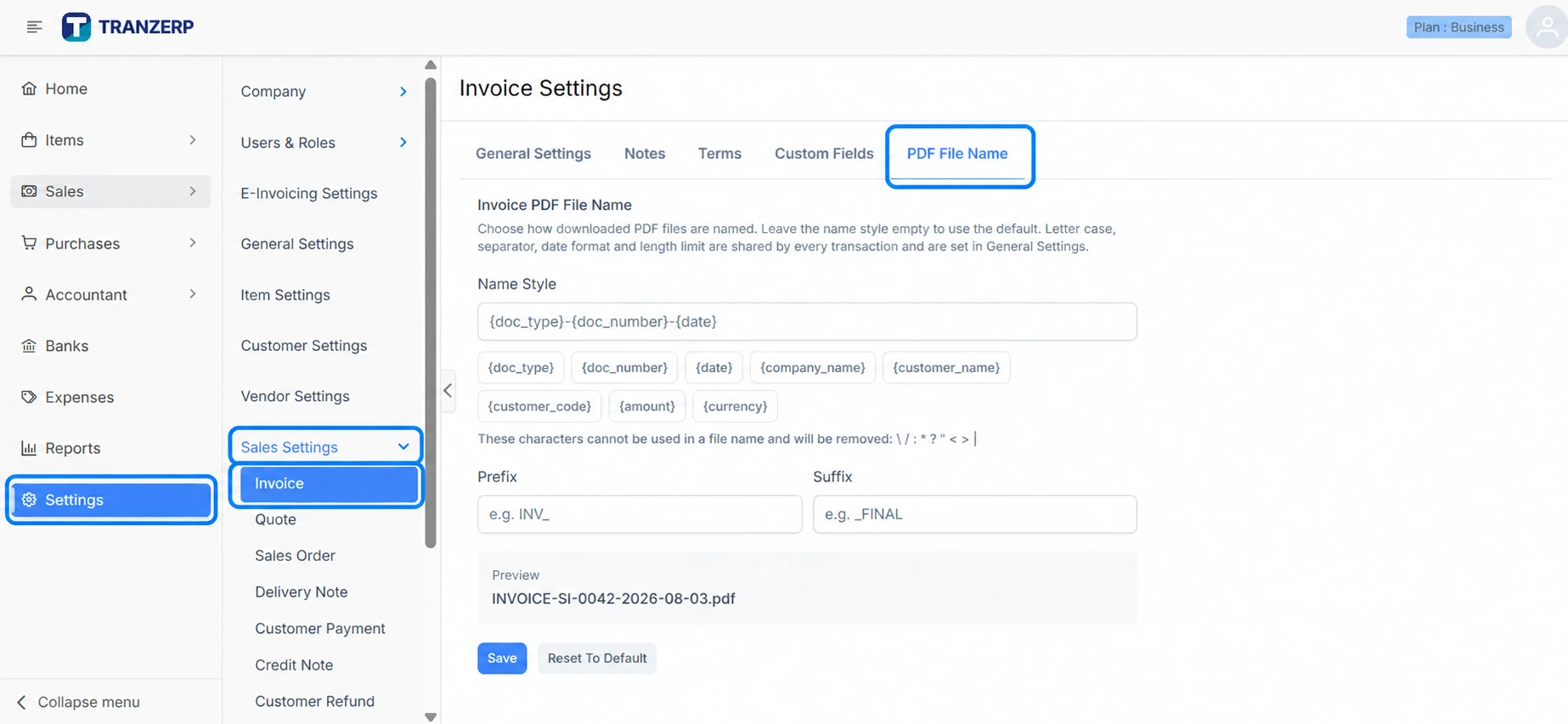
Open PDF File Name settings
Open the invoice’s file name settings. In Settings, expand Sales Settings, select Invoice and open the PDF File Name tab. This guide uses invoices as the example.
Review the default format. Name Style shows the default pattern: document type, document number and date. The available placeholders appear directly below the field. Each placeholder is replaced with the corresponding information when the PDF file name is generated.
Check the shared naming options. Letter case, separator, date format and length limit are shared across transactions and are set in Settings → General Settings. This tab controls the invoice’s Name Style, Prefix and Suffix.
Set the name style and save
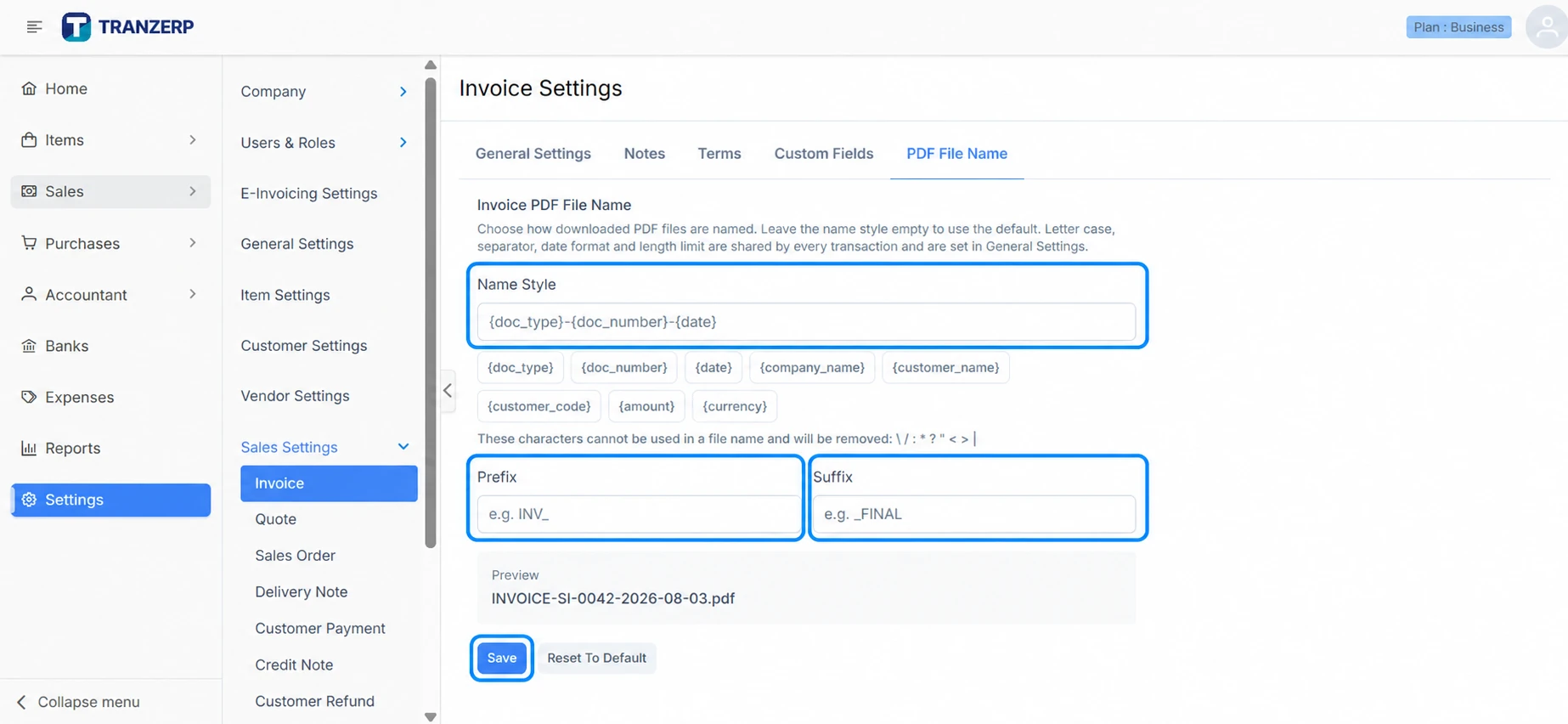
Set Name Style. Keep the default pattern or arrange the available placeholders to include the information you need. Leave Name Style empty to use the default. Use the placeholders listed beneath the field when building your format.
Add a Prefix if needed. Enter text to place at the beginning of the file name. With the default style, it appears before the document type. Leave this field empty if you do not need extra text at the start.
Add a Suffix if needed. Enter text to place at the end of the name, before the .pdf extension. With the default style, it appears after the date. Leave this field empty if you do not need extra text at the end.
Review the preview and save. The example leaves Prefix and Suffix empty, so neither appears in the preview. The faint text in those fields is a hint, not an entered value. Check the resulting name in Preview, then click Save.
Available placeholders
The invoice’s PDF File Name tab lists these eight placeholders. Keep the placeholder names and braces exactly as shown when using them in Name Style.
| Placeholder | Information used |
|---|---|
{doc_type} | Document type, such as INVOICE. |
{doc_number} | Transaction number, such as SI-0042. |
{date} | Document date, using the shared date format. |
{company_name} | Your company’s name. |
{customer_name} | The customer’s name. |
{customer_code} | The customer’s code. |
{amount} | The transaction amount. |
{currency} | The transaction currency. |
For example, {doc_number}-{customer_name} includes
the transaction number and customer name. Review the preview after
changing the order or adding placeholders.
These characters cannot be used in a file name and will
be removed: \ / : * ? " < > |
Review the name and download a PDF
Use Preview to check how the parts fit together.
The screenshot shows INVOICE-SI-0042-2026-08-03.pdf: INVOICE is the document type, SI-0042 is the document
number and 2026-08-03 is the date. Prefix and
Suffix are empty.
If you add a prefix or suffix, they surround the Name Style
result. For example, using ARCHIVE_ as the Prefix
and _FINAL as the Suffix around the screenshot’s
name would give ARCHIVE_INVOICE-SI-0042-2026-08-03_FINAL.pdf. Check the actual Preview with your shared naming settings
before saving.
Click Save when the format is ready. Open an invoice and download its PDF to confirm the saved file name. The placeholders use the information for that document.
FAQs
Can I include the customer name in an invoice’s file name?
Yes. Include {customer_name} in Name Style
along with any other available placeholders you need. For
example, combine it with {doc_number} to
identify both the invoice and its customer.
Do I need to enter a prefix and suffix?
No. Both are optional. Leave them empty to use the Name Style result on its own, as shown in the screenshots.
Where can I change the date format or letter case?
Open Settings → General Settings. Letter case, separator, date format and length limit are shared by every transaction, so review their effect on your other document file names too.
Can I return to the default name style?
Leave Name Style empty to use the default format. Clear Prefix and Suffix too if you do not want extra text, check Preview and click Save. The tab also provides a Reset To Default button.
Need help choosing a file name format?
Talk to our team about naming downloaded PDFs so they are easy to find and organise.