
Before you start
Prepare the instructions and conditions you use regularly. Save related text together under a simple label, such as Default or Standard, so it is easy to find again.
This walkthrough uses Sales Order under Settings → Sales Settings. For invoices or quotes, open Invoice or Quote in the same menu and save the notes and terms for that document type.
Open Notes settings
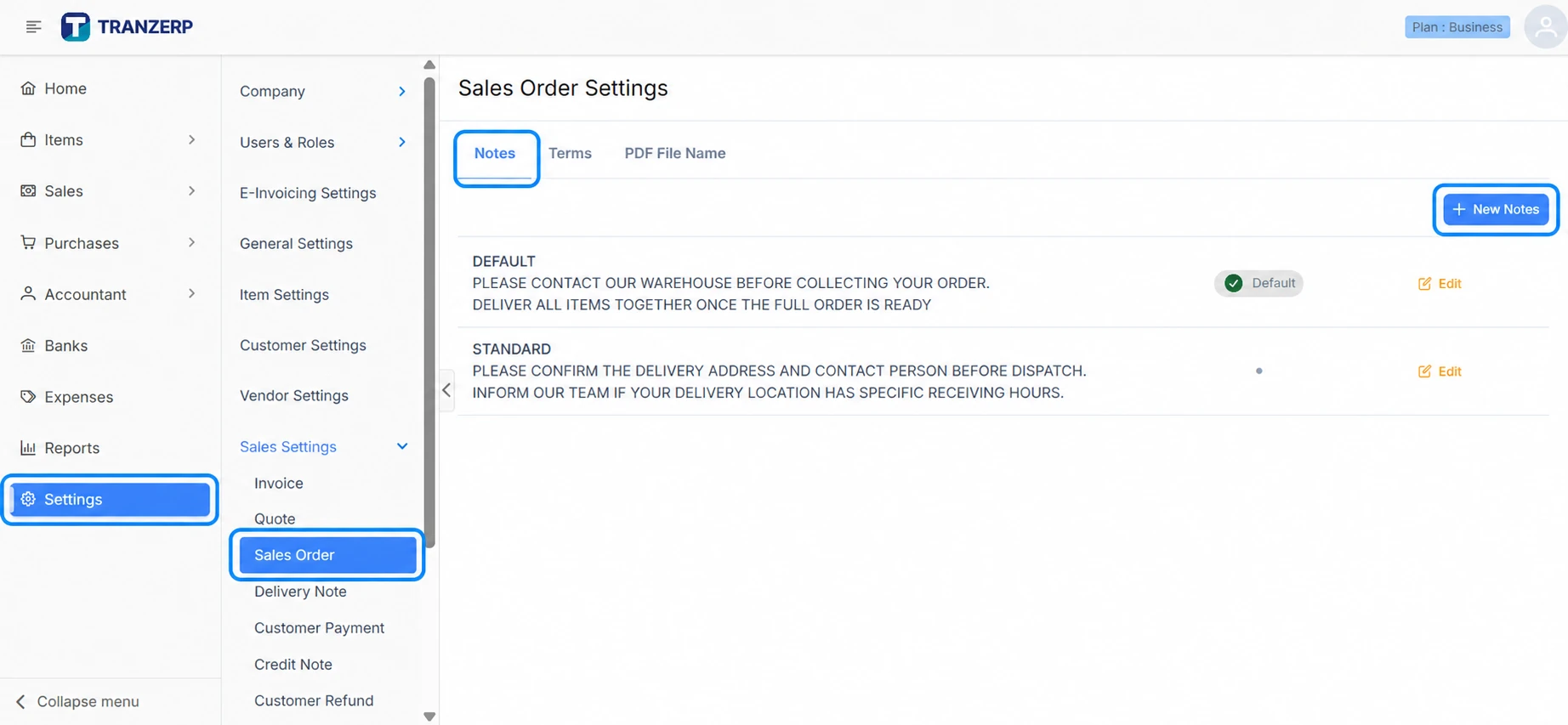
Open the Notes tab. In Settings, expand Sales Settings and open Sales Order. Click Notes to see the saved note sets for sales orders. This example already has two sets labelled DEFAULT and STANDARD.
Add a note set. Click + New Notes to open the form. You can keep several instructions together under one label.
Create and save notes
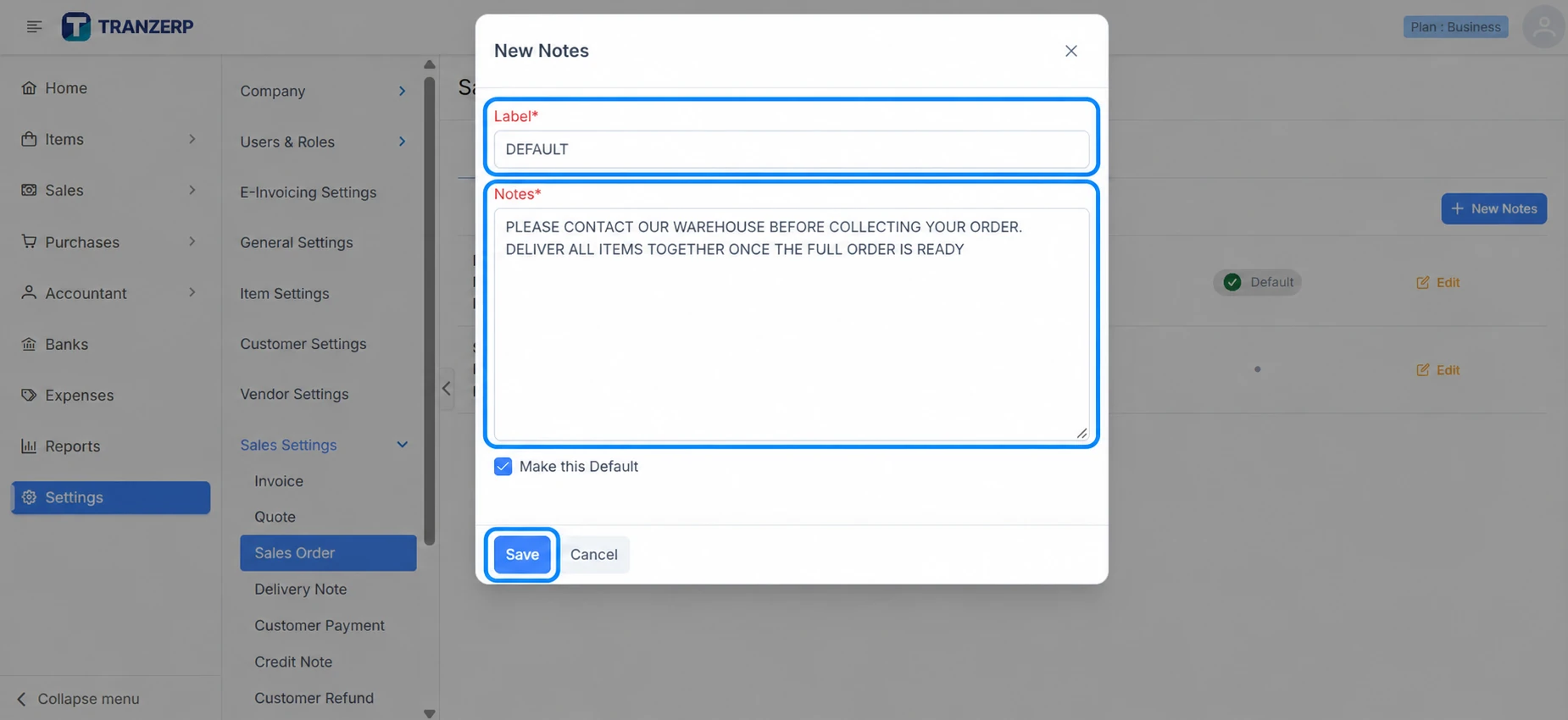
Add a label and your notes. Enter a simple Label, such as Default or Standard, to identify this set. In Notes, enter the instructions you want to reuse. Add each instruction on a new line where helpful.
Keep related instructions together. The DEFAULT example asks customers to contact the warehouse before collection and says all items should be delivered together once the full order is ready. Both instructions belong to the same saved note set.
Set the default and save. Select Make this Default if you want this note set to be the default for sales orders, then click Save. The example has this option checked, and the saved set is marked Default in the Notes list.
Open Terms settings
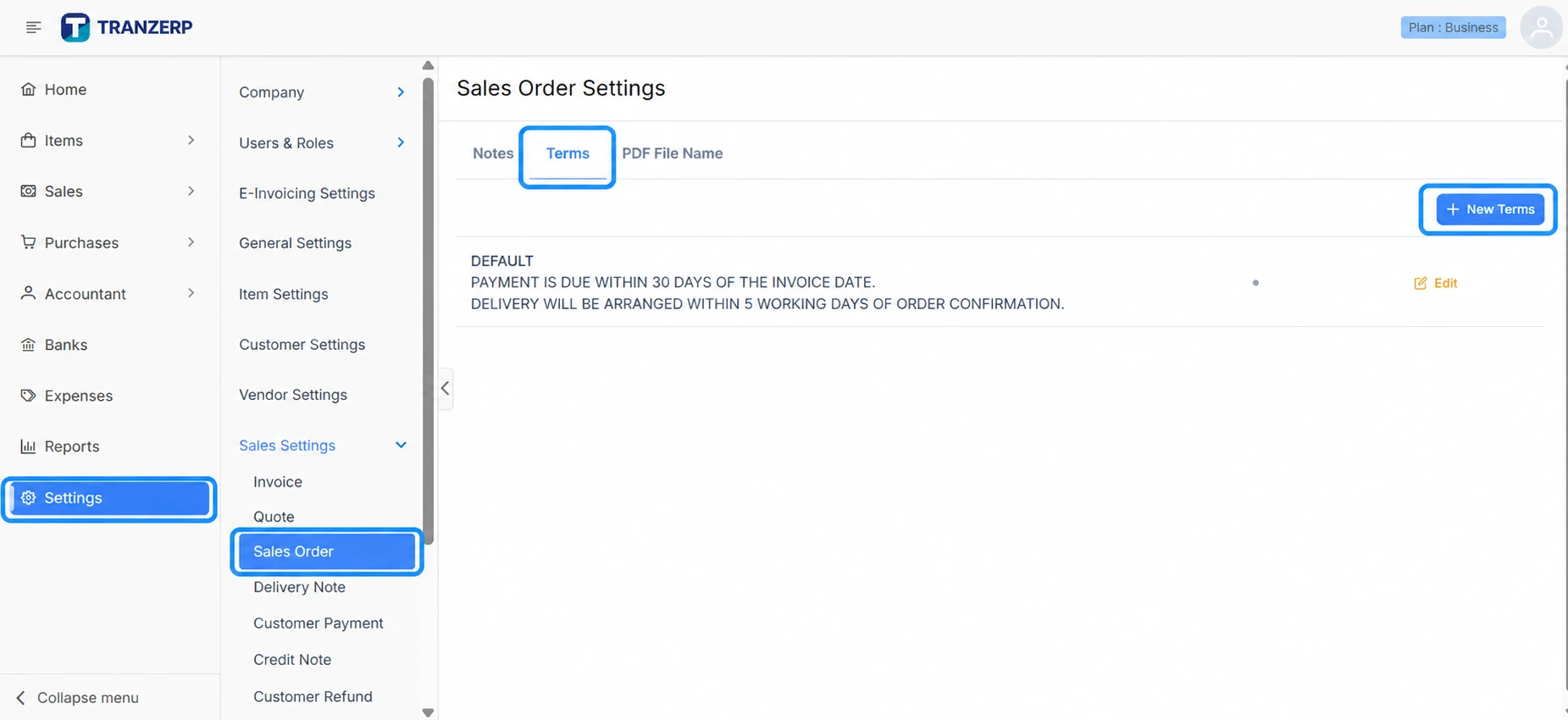
Open the Terms tab. In the same Sales Order Settings page, click Terms. This list contains the saved terms for sales orders, such as payment conditions and delivery schedules.
Add a terms set. Click + New Terms to create a set you can use again. A single label can hold several conditions.
Create and save terms
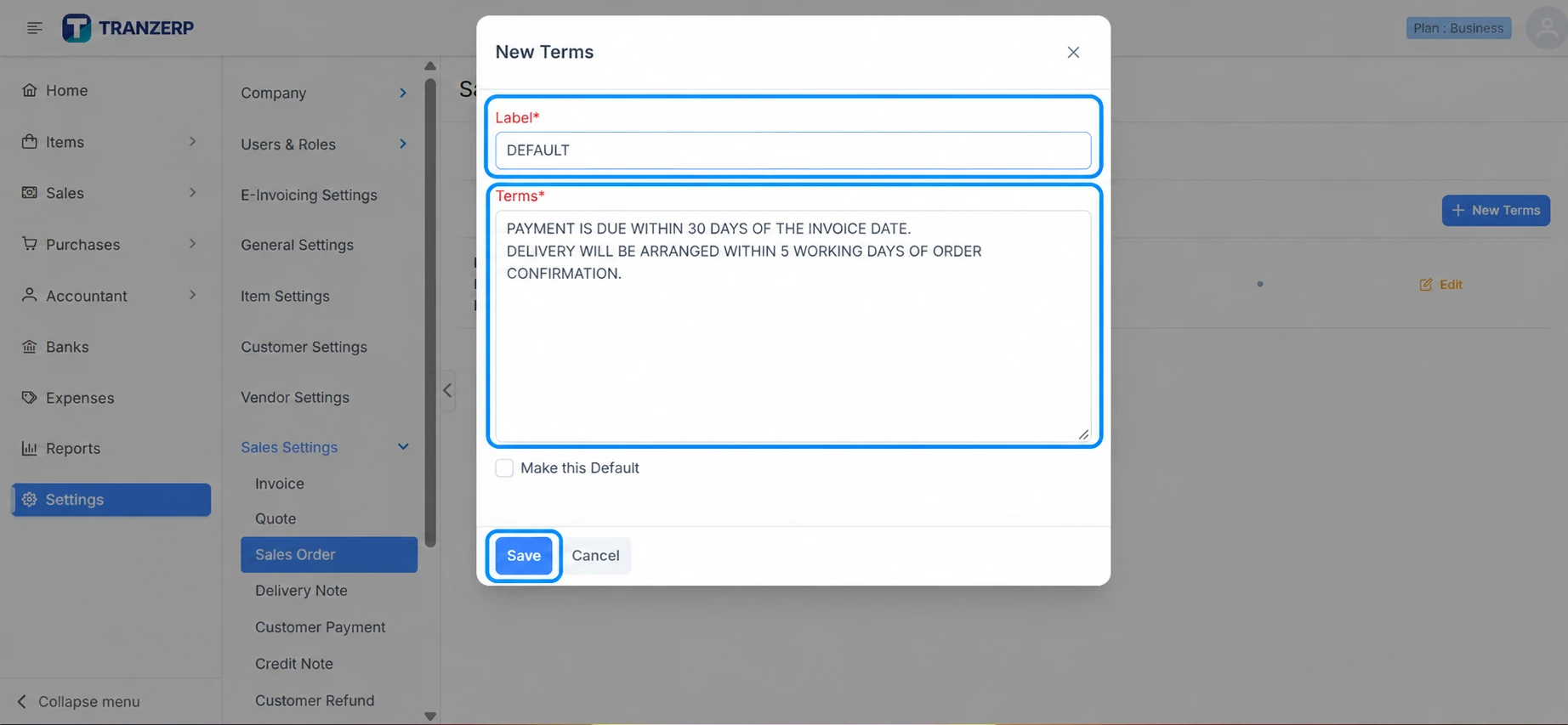
Name the set and enter your terms. Enter a Label, such as Default or Standard. In Terms, add the conditions you want to reuse. The screenshot’s example includes payment within 30 days of the invoice date and delivery within 5 working days of order confirmation.
Choose the default option. Use Make this Default to set this terms set as the default for sales orders. The example leaves it unchecked. The Label identifies the saved set; the checkbox controls its default setting.
Save your terms. Review the wording and click Save. Your new set appears in the Terms list, ready to select when preparing a sales order.
Use your saved notes and terms
When preparing a transaction, find its notes and terms fields and choose the saved label from the relevant selector. Use the document type where you saved the set: the Sales Order examples belong to sales orders.
Review the selected text for that customer and order before saving the transaction. You can keep different saved sets for common situations, such as collection instructions or delivery arrangements, and select the one you need.
FAQs
Can I keep several instructions under one label?
Yes. One label can hold several lines of notes or terms. For example, a Default note set can include both collection and delivery instructions.
Can I save different versions for different orders?
Yes. Create additional sets with labels you recognise, such as Default and Standard. Keep the relevant instructions or conditions together in each set and select the one that fits the order.
How do I update wording that my team reuses?
Return to the document’s settings, open Notes or Terms, and click Edit beside the saved set. Update the wording, review its default setting and click Save.
Need help setting up reusable text?
Talk to our team about saving the notes and terms you use in your everyday transactions.