
Taxes
Set up the tax records you can select when creating or editing items. Each record has a name and rate, with additional settings for region, tax category and zero-rated reasons.
Find a tax
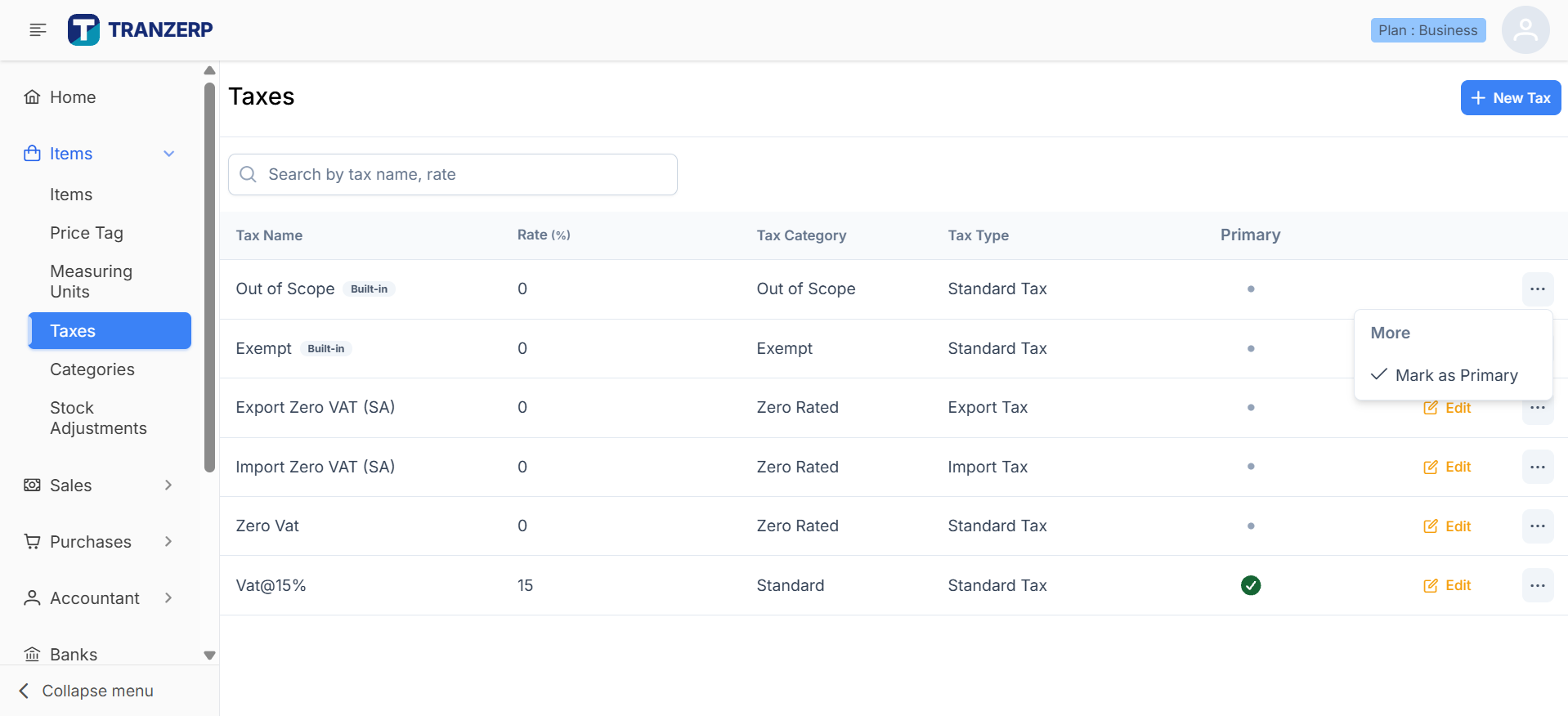
In TranzERP, expand Items and select Taxes. Search by tax name or rate. Compare the Rate (%), Tax Category and Tax Type columns before selecting a record. Several records can have a rate of 0%, so use the category and type to tell them apart. The list identifies Out of Scope and Exempt as built-in records.
Create a tax
- Click New Tax.
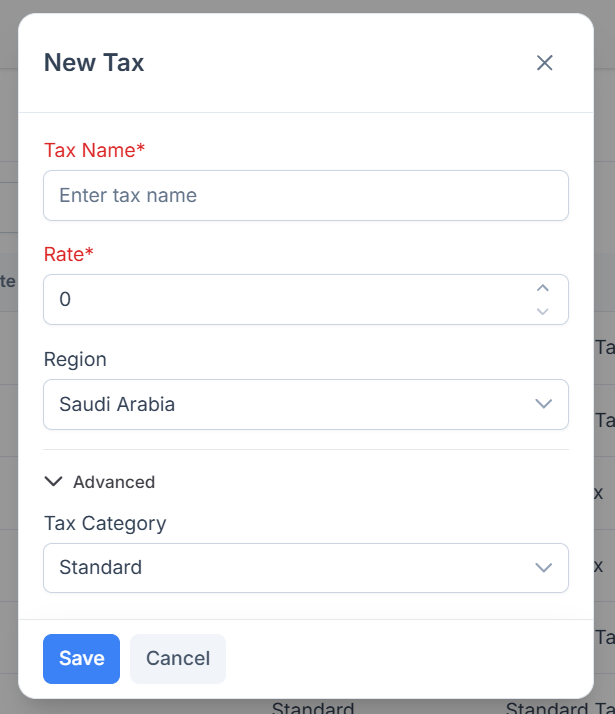
- Enter a descriptive Tax Name so you can recognize the record in the item form. The name is required.
- Enter the required Rate as a percentage. For example, enter 15 to record 15%.
- Choose the Region and review the Tax Category under Advanced. Complete any additional fields that appear.
- Click Save and check the record in the list. Use Cancel to close the form without saving.
Choose the region and tax type
- Saudi Arabia
- Select this option for a tax record configured for the Saudi Arabia region.
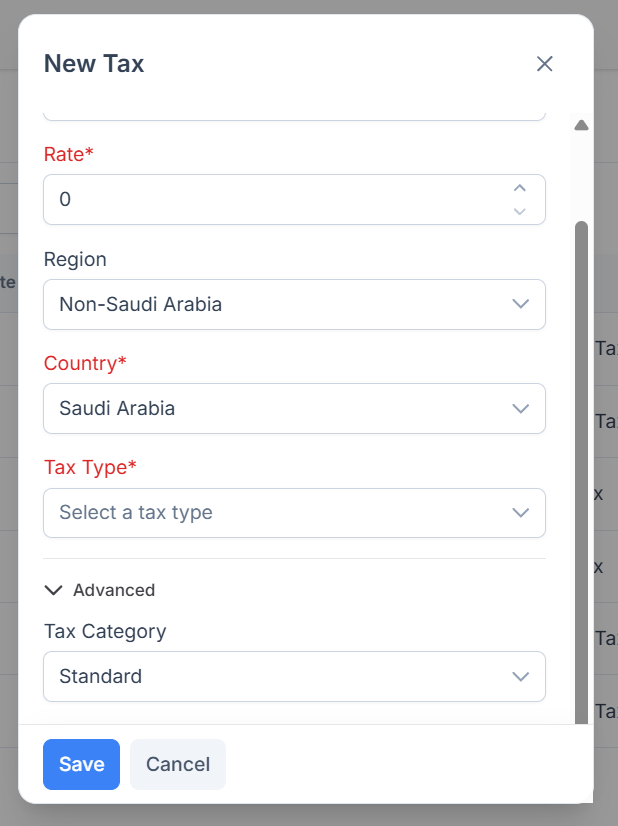
- Non-Saudi Arabia
- Select this option to show the required Country and Tax Type fields. Choose the country from the country list, then select Import VAT for an import tax record or Export VAT for an export tax record. Review both selections before saving.
Choose the tax category
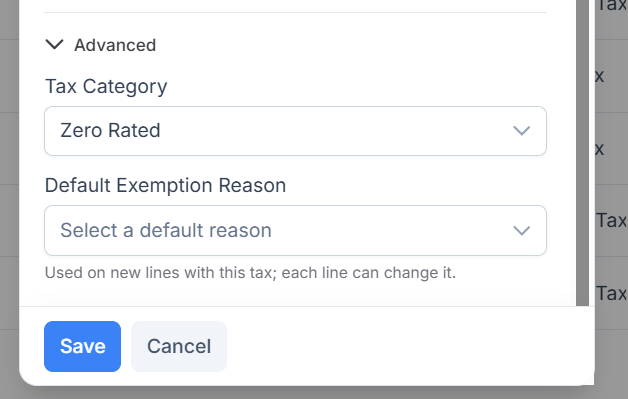
Expand Advanced and open Tax Category. The available choices are Standard and Zero Rated. Selecting Zero Rated reveals the Default Exemption Reason dropdown. The selected reason is used on new lines that use this tax, and you can change it on each line.
Default exemption reason options
The Default Exemption Reason dropdown lists these options.
- Export of goods
- Export of services
- The international transport of Goods
- International transport of passengers
- Services directly connected and incidental to a Supply of international passenger transport
- Supply of a qualifying means of transport
- Any services relating to Goods or passenger transportation, as defined in article twenty five of these Regulations
- Medicines and medical equipment
- Qualifying metals
- Private education to citizen
- Private healthcare to citizen
- Supply of qualified military goods
- Qualified Supply of Goods in Duty Free area
- Supply under Customs Suspension Arrangement
- Supply on which the Government bears the VAT
Edit or mark a tax as primary
Find the tax and click Edit where available. Review the settings, save your changes, and check the updated row. To designate a tax as primary, open its three-dot menu, select Mark as Primary, and confirm the green check in the Primary column.
Use a tax on an item
When creating or editing an item, open its Tax dropdown and select the configured record. Check the name and rate, especially when several records share the same percentage. See Choose a tax in the Items guide.
Troubleshooting
Country or Tax Type is missing.
Set Region to Non-Saudi Arabia and scroll through the form.
Default Exemption Reason is missing.
Expand Advanced and check that Tax Category is set to Zero Rated.
The tax record is hard to find.
Try searching by part of the name or by rate, then compare the category and type.
The tax cannot be saved.
Check Tax Name and Rate. For Non-Saudi Arabia, also complete Country and Tax Type. Review the selected category and any validation message shown by the form.
Several tax records show 0%. Which record did I select?
Compare the tax name, category and type in the list. Use those details to identify the configured record when several rates are the same.
How do I change the primary tax?
Open the intended record’s three-dot menu and select Mark as Primary. Confirm the green check in the Primary column.
Where is the default exemption reason used?
It is used on new lines that use that tax. Review the reason on the individual line and change it there when needed.